








|
This online Quickstart Guide was designed to help you install and run Visual IP Trace for the first time. Advanced topics are covered in the Reference Manual. First of all you need to download and install Visual IP Trace correctly. To do this download the latest install file on to your machine. You will also need to check that your machine meets the minimum requirements for Visual IP Trace and that you have the appropriate Java installed on your machine. Once you have done this you can install Visual IP Trace. Once you have made sure your machine can run Visual IP Trace correctly then you can run the download exe. To do this browse to the directory you downloaded the file to and double click the file; this will initiate the install program.
Follow the on screen instructions until you have successfully installed the program. |
Once you have successfully installed Visual IP Trace then you can start the application. Visual IP Trace provides 4 different and quick ways to access and run a trace analysis, via standard components of the Microsoft Windows desktop environment. You may use any or all of these methods to initiate an trace. The figures below illustrate the 4 access options.
 The Windows Task Bar now supports
a Visualware toolbar that allows you to directly enter an IP address or
domain name to trace. This enables you to instantly trace
an IP address or web domain without disrupting the desktop windows currently
in use.
The Windows Task Bar now supports
a Visualware toolbar that allows you to directly enter an IP address or
domain name to trace. This enables you to instantly trace
an IP address or web domain without disrupting the desktop windows currently
in use.

 The Windows System
Tray includes a Visualware shortcut icon to provide
fast access to tracing options, as well as administrator configuration
functions. Similar to the Visualware toolbar, the system tray icon provides
simple and quick access without having to disrupt your current Windows
desktop. Just right click on the Visualware icon to run a trace or access
to configuration options.
The Windows System
Tray includes a Visualware shortcut icon to provide
fast access to tracing options, as well as administrator configuration
functions. Similar to the Visualware toolbar, the system tray icon provides
simple and quick access without having to disrupt your current Windows
desktop. Just right click on the Visualware icon to run a trace or access
to configuration options.
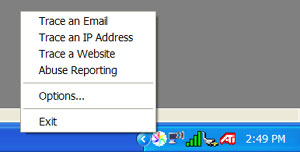
 Internet Explorer provides
a shortcut button in the browser address bar to immediately trace the web
site address in your browser. Simply click the Visual
IP Trace button to
initiate a trace to the web site domain being browsed.
Internet Explorer provides
a shortcut button in the browser address bar to immediately trace the web
site address in your browser. Simply click the Visual
IP Trace button to
initiate a trace to the web site domain being browsed.

 Windows Start Menu provides
access to the standard program group location where Visual IP Trace
was first installed.
Windows Start Menu provides
access to the standard program group location where Visual IP Trace
was first installed.
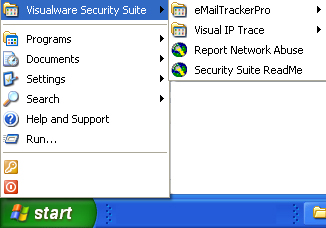
Once you have clicked the Visual IP Trace shortcut the screen below will appear (fig 2)
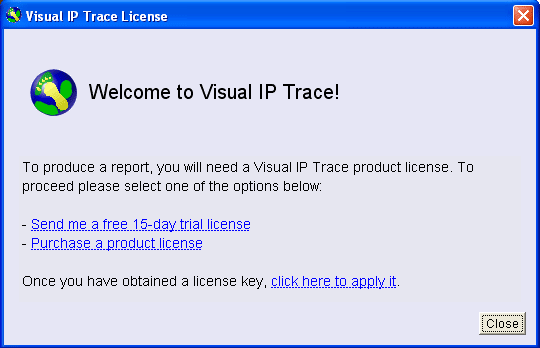
Fig 2: Running Visual IP Trace for the first time
This dialog box gives you three options:
To enter a license key click the 'click here to apply it' link on the screen above to launch the license key dialog box (fig 3)
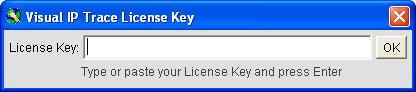
Fig 3: License Key Dialog Box
Make sure you copy and paste the key from your confirmation email into the license key dialog box to make sure the key is entered correctly. Once entered click the 'ok' button. Visual IP Trace will briefly communicate with a Visualware server to validate the key then the dialog box will disappear and the main GUI of Visual IP Trace should appear.
For a detailed description of how to use Visual IP Trace then see the manual; if you have further questions then please contact support.