|
TRACE AN IP ADDRESS
OR WEBSITE
IP Addresses, Domains and Host Name
Basics
All computers that access the Internet are identified
by an IP (Internet Protocol) address which consists
of 4 numbers separated by periods, for example 161.58.180.113.
In the case of a website, the IP address represents
a domain name (such as 'visualware.com'),
which allows a computer to have a name that is easily
recognizable and much easier to remember than an IP
address. This is often referred to as the host
name or domain
name.
When you enter a host name Visual IP Trace looks-up
the IP address from a Domain Name Server (DNS),
which is a bit like an Internet telephone directory.
The DNS is then used to locate the details of
the computer to be traced.
Your computer has also been assigned
an IP address, an IP address is necessary in order
to browse the web, send email, or use any other Internet
services. Many IP addresses are dynamic, meaning
they are assigned temporarily from a block of addresses
that has been allocated to an ISP or host provider.
Dynamic IP addresses are used most often for dial-up
Internet access, so that each time a dial-up user connects
to the Internet, they are assigned a new IP address.
IP addresses that are assigned on a permanent basis
are considered static.
ISPs normally keep logs of which users are assigned
an IP address -- when reporting
Internet abuse to an
ISP it is important to note the day, time and time
zone of the incident so that user can be determined.
Visual IP Trace enables you to trace:
- an IP address, such as 68.123.46.124
- a web domain or host name, such as google.com
- a website address, such as http://visualroute.visualware.com.
You may perform a trace analysis by using any of the
5 methods listed below.
1. Visualware Toolbar in the Windows
Task Bar
To add the toolbar, right click on the Windows task
bar, and select Toolbars, Visualware,
which will add the toolbar shown below.
Enter the IP address, domain or host name you want
to trace and click the green arrow to start a basic trace.
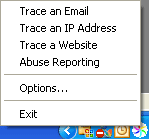
2. Visualware System Tray Shortcut
Right-click
on the Visualware icon  in
the Windows task bar, normally located at the bottom
right of your screen, and select Trace an IP
Address or Trace a Website,
which will open the Visual IP Trace window. in
the Windows task bar, normally located at the bottom
right of your screen, and select Trace an IP
Address or Trace a Website,
which will open the Visual IP Trace window.
3. Visual IP Trace Shortcut in Microsoft
Internet Explorer
You can quickly trace the website being viewed in
your browser with a simple click on the Visual
IP Trace toolbar button, which starts the
basic trace.
To add or remove the Visual IP Trace shortcut
from Internet Explorer toolbar, right click on the
toolbar and select/deselect Visual IP Trace.
4. Visualware Desktop Icon
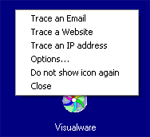
To use the desktop icon simply right click it, as shown in the image above, to get the menu
If you have eMailTrackerPro installed then you will be able to choose 'Trace an Email' which
will launch eMailTrackerPro. Choosing 'Trace a Website' or 'Trace an IP address' will result in Visual IP Trace launching and you can begin
your trace from there. The other options are 'Options...' which takes you to the preferences window, 'Do not show icon again'
which will cause the icon not to start next time you reboot Windows. You can always get the icon back by going to preferences. The
last option is simply to close the icon.
5. Launch the Visual IP Trace from
Windows Start Menu
Select Start,
Programs, Visual IP Trace, Visual IP Trace
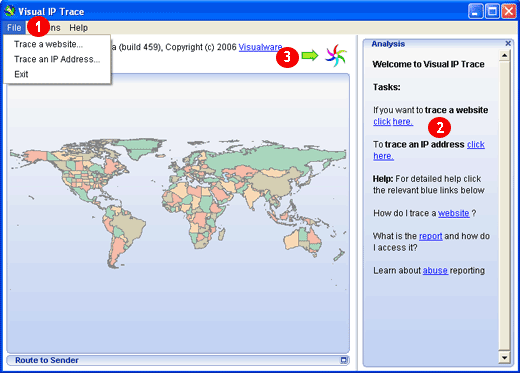
You can start a trace in one of three ways, as shown in the image above.
1. Choose an option from the File menu
2. Click on either of the hyperlinks in the welcome panel
3. Click the 
Clicking any of these options will bring up the dialog box below:
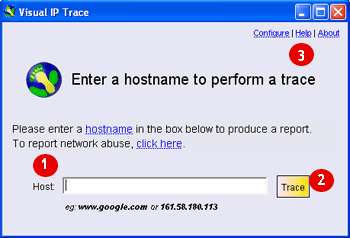
To start a trace you simply type in the IP/domain into the address bar denoted by the number 1 in the
image above and click the trace button denoted by the number 2. This will close the dialog box and start
the trace in the main GUI (image below). The three hyperlinks denoted by the number 3
take you to the preferences ( configure ), the in built help file ( help ) and the about dialog ( about ) which
tells you information about the product you have.
Once you have entered the IP/domain you want to trace Visual IP Trace will perform a basic trace (this can be changed in the preferences to always perform an advanced trace). 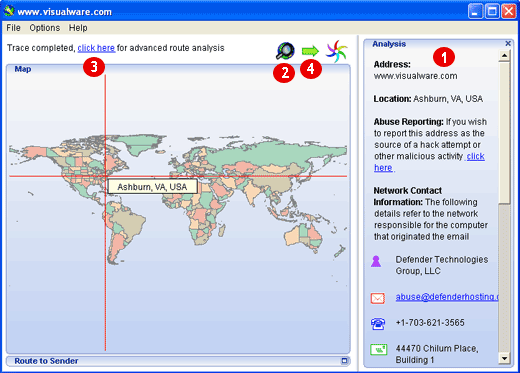
The numbers below are linked to the number shown on the image above:
1. This is the analysis panel. This gives you all the network and domain contact information connected to the IP/domain you just traced.
2 and 3. You can either click the button at 2 or the link at 3 to initiate an advanced trace.
4. If you wish to perform another trace then click the
Once you have chosen to run an advanced trace you will get an view like the one below:
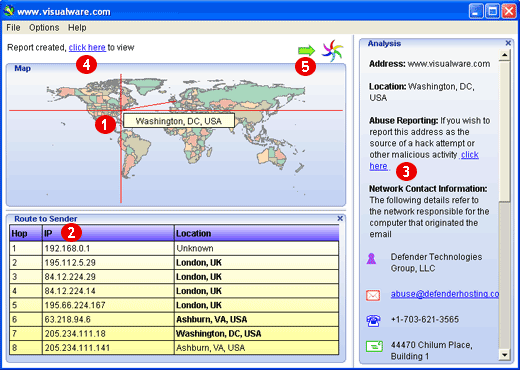
The numbers below are linked to the number shown on the image above:
1 . This shows the traceroute on the world map, from the starting location to the end location (which is pinpointed).
2 . This is the route table. This shows the hop number, along with the IP address and location associated with this hop.
3. Again you have the analysis panel to the right, you have the option with the advanced trace to report the IP/domain as the source of a hack attempt or other malicious activity - abuse reporting
4. You can view a more in depth identification report by clicking this link
5. If you wish to perform another trace then click the
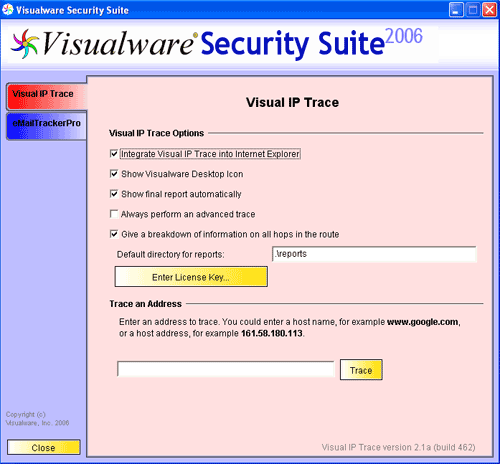
The preferences window can be accessed by
1. Right clicking the systray icon and choosing 'Options'
2. Right clicking the desktop icon and choosing 'Options'
3. Selecting 'Visual IP Trace Configuration' from the Visual IP Trace folder in the programs menu
Visual IP Trace has numerous options in the preferences dialog that help you customize your Visual IP Trace experience.
1st check box: If you want Visual IP Trace to integrate with Internet Explorer then check this box
2nd check box: If you want the Visualware Desktop icon to show then check this box
3rd check box: If you want the final identification report to show automatically after an advanced trace then check this box
4th check box: If you want Visual IP Trace to always perform and advanced trace then check this box
5th check box: If you want Visual IP Trace to give more information on the hops in the route then check this box, the info appears in the identification report .
Every time you do an advanced trace the identification report is saved automatically to the 'reports' folder in the Visual IP Trace install folder. You can change the default reports folder using the address bar marked 'default directory for reports'.
To enter your license key click the 'Enter License Key..' button then copy and paste your key into the resulting license key dialog box
To start tracing enter an IP/domain into the last address box and click the 'Trace' button to begin the trace. |









