|
REPORT NETWORK ABUSE
You can start the Abuse Reporting wizard in one of three
ways:
- Right click on the Visualware systray icon and select Abuse
Reporting
- Select Abuse Reporting from the Windows
Start->Programs->Visualware
Security Suite program group
- Click the Abuse Reporting links in the eMailTrackerPro
or Visual IP Trace applications
The Abuse Reporting wizard shown above is a general
purpose wizard designed to help you submit an abuse report
to the Internet Service Provider (ISP) for the computer
system that originated the abuse incident. It is important
to provide as much detail as you can when reporting abuse,
as it helps the ISP to better understand the complaint
and take appropriate action against the responsible party.
To report spam or virus email:
- Select the type of email abuse (Spam or Virus
Email)
from the Abuse Type option.
- If you have previously traced an email message,
the email header should be automatically entered
in the Email headers box. If not, copy the
header from the email message, then paste it in the
box.
- Select the Produce Report button, which
will generate a report in your web browser.
- Send the web page by email from your browser (detailed
below).
To report a hacker attack:
- Select Hack Attempt from the Abuse
Type option.
- Fill in the form with information described
below.
Hacker IP address |
The IP address of the hacker that has caused
the incident |
Your IP Address |
If you do not know your IP address, you
can run the free Visualware WhoAmI utility
which will show your IP address in the External
IP field. |
Incident Date/Time |
The date and time the attack occurred. |
Your Time Zone |
This is needed to help the ISP identify
the user of Hacker IP address at the time of
the attack. |
Details |
Specific information about the attack, in
particular how it was discovered, i.e. a firewall
alert. Include any evidence such as the firewall
message text or log entry, or details from
the Visual IP Trace report. |
- Select the Produce Report button, which
will generate a report in your web browser.
- Send the web page by email from your browser.
Send the Abuse Report
web page by email:
The example below is for Internet Explorer, the
approach may differ depending on the actual browser
you are using.
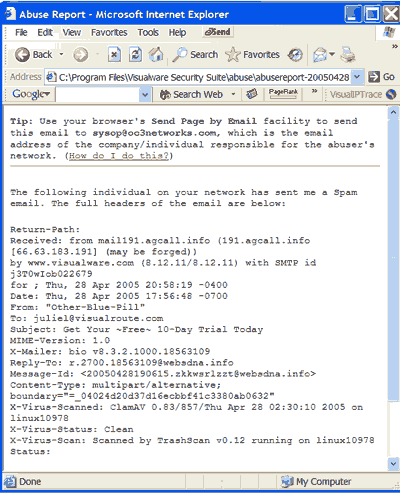
An example of a Visualware Security Suite Abuse Report
in shown above. At the top of the report the Visualware
Security Suite has automatically identified the Network
Owner (ISP) details for the IP address being traced and
has highlighted the published abuse email address provided
by that ISP, which is sysop@oc3networks.com in
example above.
In the browser window click File->Send->Page
by E-mail... which will open a new email message
with the Abuse Report added as an attachment. Enter
the abuse email address provided at the top of the
report in ‘TO:’ field, amend the subject
line as needed for clarity, and add any additional
information to the body of the email that you would
like to submit along with the Abuse Report attachment,
and send when complete.
NOTE: For security reasons some companies no longer
allow email attachments, which means your abuse report
could be rejected. If this happens you will need to copy
contents of the Abuse Report and paste it a new email
message.
You can easily copy the Abuse Report by clicking anywhere
in the Abuse Report browser window, typing ‘Ctrl-a’ (hold
down the Ctrl key and press the ‘a’ key)
to highlight all the text, then copy and paste it into
an email message.
If you should experience any problems please contact support.
|