TRACE AN IP ADDRESS OR WEBSITE
IP Addresses, Domains and Host Name
Basics
All computers that access the Internet are identified
by an IP (Internet Protocol) address which consists
of 4 numbers separated by periods, for example 161.58.180.113.
In the case of a website, the IP address represents
a domain name (such as 'visualware.com'),
which allows a computer to have a name that is easily
recognizable and much easier to remember than an IP
address. This is often referred to as the host
name or domain
name.
When you enter a host name Visual IP Trace looks-up
the IP address from a Domain Name Server (DNS),
which is a bit like an Internet telephone directory.
The DNS is then used to locate the details of
the computer to be traced.
Your computer has also been assigned
an IP address, an IP address is necessary in order
to browse the web, send email, or use any other Internet
services. Many IP addresses are dynamic, meaning
they are assigned temporarily from a block of addresses
that has been allocated to an ISP or host provider.
Dynamic IP addresses are used most often for dial-up
Internet access, so that each time a dial-up user connects
to the Internet, they are assigned a new IP address.
IP addresses that are assigned on a permanent basis
are considered static.
ISPs normally keep logs of which users are assigned
an IP address -- when reporting
Internet abuse to an
ISP it is important to note the day, time and time
zone of the incident so that user can be determined.
Visual IP Trace enables you to trace and IP address, a web domain or a website address.
1. Visualware Toolbar in the Windows Task Bar
To add the toolbar, right click on the Windows task bar, and select Toolbars, Visualware, which will add the toolbar shown below.
Enter the IP address, domain or host name you want to trace and click the green arrow to start the trace analysis and view the Identification Report.
2. Visualware System Tray Shortcut
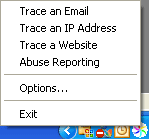 Right-click on the Visualware icon Right-click on the Visualware icon  in the Windows task bar, normally located at the bottom right of your screen, and select Trace an IP Address or Trace a Website, which will open the Visual IP Trace window below. in the Windows task bar, normally located at the bottom right of your screen, and select Trace an IP Address or Trace a Website, which will open the Visual IP Trace window below.
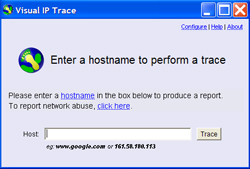 In the Visual IP Trace window, enter the IP address, domain or host name you want to trace and click the Trace button to start the trace analysis and view the Identification Report. In the Visual IP Trace window, enter the IP address, domain or host name you want to trace and click the Trace button to start the trace analysis and view the Identification Report.
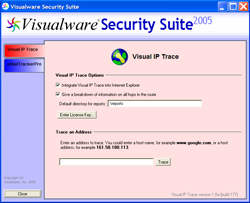 A single-click on the Visualware systray icon, or a right-click then selecting Options will open the Visualware Security Suite options window below. Select the Visual IP Trace tab, then enter the IP address, domain or host name you want to trace and click Trace button to start the trace analysis and view the Identification Report. A single-click on the Visualware systray icon, or a right-click then selecting Options will open the Visualware Security Suite options window below. Select the Visual IP Trace tab, then enter the IP address, domain or host name you want to trace and click Trace button to start the trace analysis and view the Identification Report.
3. Visual IP Trace Shortcut in Microsoft Internet Explorer
You can quickly trace the website being viewed in your browser with a simple click on the Visual IP Trace toolbar button, which starts the trace analysis and creates the Identification Report.
To add or remove the Visual IP Trace shortcut from Internet Explorer toolbar, right click on the toolbar and select/deselect Visual IP Trace.
4. Launch the Visual IP Trace from Windows Start Menu
Select Start, Programs, Visualware Security Suite, Visual IP Trace and select Trace an IP Address or Trace a Website, which will open the Visual IP Trace window below.
In the Visual IP Trace window, enter the IP address, domain or host name you want to trace and click the Trace button to start the trace analysis and view the Identification Report.
|









